> For the complete documentation index, see [llms.txt](https://docs.payfacto.com/centre-de-documentation-payfacto/llms.txt). Markdown versions of documentation pages are available by appending `.md` to page URLs; this page is available as [Markdown](https://docs.payfacto.com/centre-de-documentation-payfacto/maitred-pos/maitred/maitred-complete-online-documentation/chap-4-point-of-sale-control/taxes/assign-taxes-to-divisions.md).
# Assign Taxes to Divisions
In Maitre'D, taxes are assigned at the division level. It is not possible to assign taxes to individual items. Before you begin, make sure that division categories and divisions are created in your Maitre'D database.
***
### To assign taxes to divisions:
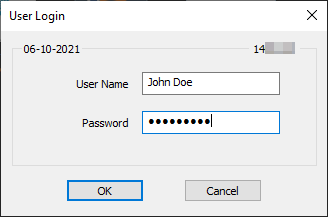
1. Logon to the Maitre’D Back-Office with appropriate credentials. (Distributor or System Owner)
2. Start the Point of Sale Control module.

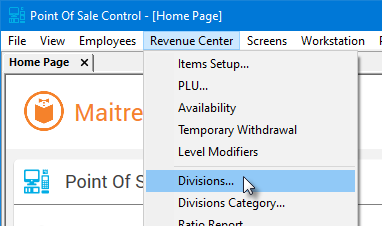
3. Click on the Revenue Center menu and select the Divisions... option.
4. The list of divisions will appear.
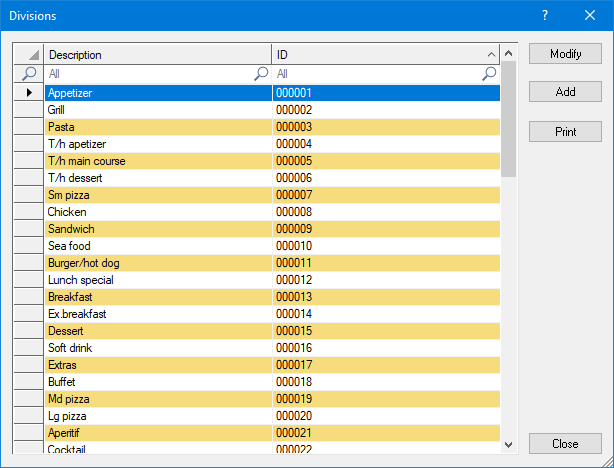

Select an existing division and click the Modify button to edit the division's properties.

Click the Add button to create a new division.

Click the Print button to generate a report which can be printed.

Click the Close button to exit the divisions list and return to the Point of Sale Control module.
5. Edit an existing division, and click on the Tax branch.
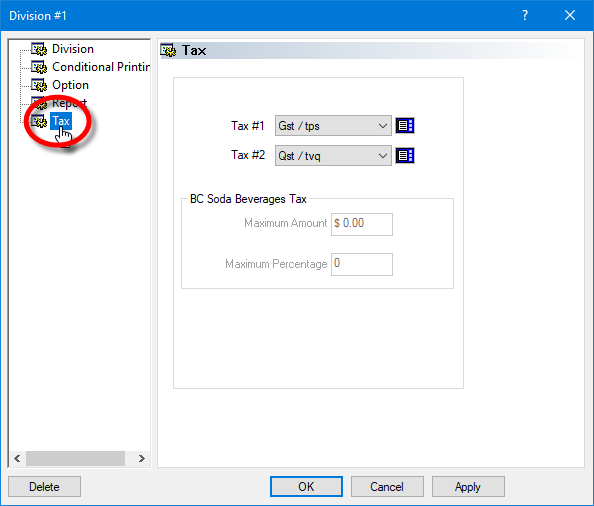
**Tax #1**
From the drop-down list, select the first tax that applies to this division.
{% hint style="info" %}
NOTE: If a division is not taxable, create a 0% tax called "Non Taxable" (or similar) and select it in this first tax field.
{% endhint %}
**Tax #2**
From the drop-down list, select a second tax, if required. Tax 2# applies after the first tax (Tax #1).
{% hint style="info" %}
NOTE: If no second tax applies, select Undefined from the drop-down list.
{% endhint %}
**BC Soda Beverages Tax**
The options in this section will only become available if one of the selected taxes has the option BC Soda Beverage Tax enabled, in Point of Sale Control / Payments / Taxes / \[select tax] / Option. These options should be used only by merchants located in the Canadian province of British Columbia.
The purpose of these settings is to configure the calculation of the BC Soda Beverage Tax for taxable items that are part of combo meals or included with other items that are not taxable. When a taxable item is part of a combo and not sold separately, the BC Soda Beverage Tax is calculated on the lesser value between $3.00 or 50% of the sale price of the combo.
**Maximum Amount**
Enter the maximum amount that will be used as a base sale price for the calculation of the BC Soda Beverage Tax on an item that is part of a combo meal or included with another item.
{% hint style="info" %}
NOTE: From April 1st, 2021, this value needs to be set at $3.00.
{% endhint %}
**Maximum Percentage**
Enter the percentage of the combo or main item price that will be used for the calculation of the BC Soda Beverage Tax.
{% hint style="info" %}
NOTE: From April 1st, 2021, this value needs to be set at 50%.
{% endhint %}
Click Delete to remove this division and return to the list of divisions.
.jpg)
Click OK to save changes and exit.
.gif)
Click Cancel to exit without saving.
.gif)
Click Apply to save changes without exiting.
Repeat this process until all your divisions have taxes assigned to them.

.jpg?alt=media&token=5432a977-aac9-4f9a-bd86-f652f03fadbf)