> For the complete documentation index, see [llms.txt](https://docs.payfacto.com/payfacto-knowledge/llms.txt). Markdown versions of documentation pages are available by appending `.md` to page URLs; this page is available as [Markdown](https://docs.payfacto.com/payfacto-knowledge/uk-and-intl/applications/securepay/maitred-configuration/electronic-funds-transfer-module-setup.md).
# Electronic Funds Transfer Module Setup
## Electronic Funds Transfer Module Setup
### Verify the Maitre’D license
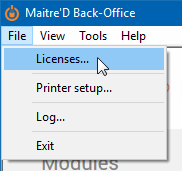
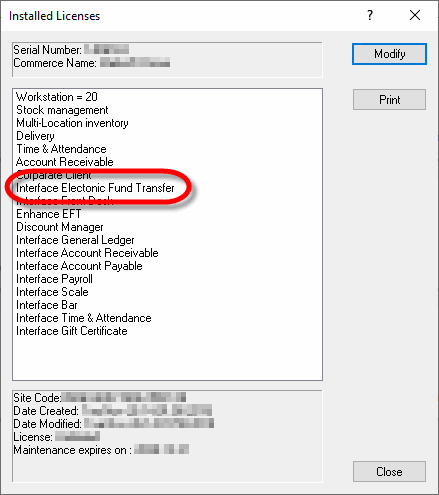
Make sure that the Maitre’D Electronic Funds Transfer Interface option is included on the Maitre’D license. To confirm this, simply logon to the Maitre’D Back-Office using appropriate credentials, click on the File menu and select the Licenses option.
This will bring up the license’s properties. Only one option is required for SecurePay to operate properly:
* Interface Electronic Fund Transfer.
If this option is missing, it will need to be purchased before you can use SecurePay. Please contact your local sales representative.
***
### Electronic Funds Transfer (EFT) Interface setup
1. Logon to the Maitre’D Back-Office with appropriate credentials. (Distributor or System Owner)
 
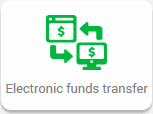
2. Start the Electronic Funds Transfer Module.
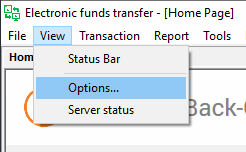
3. Click the View menu, and select Options…
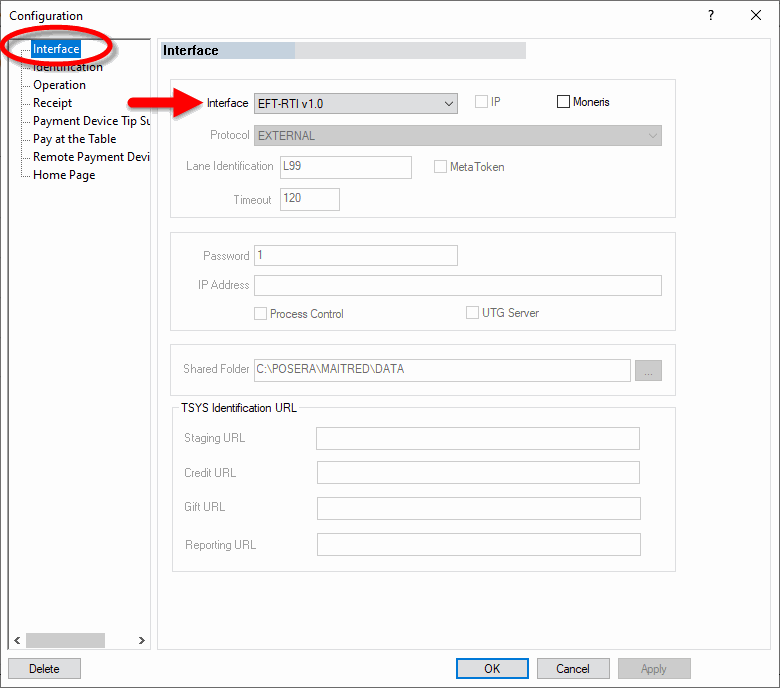
4. The Configuration screen opens on the Interface branch.
**Interface**
Select EFT-RTI v1.0 from the drop-down list.
Ignore the remainder of the settings on this page.
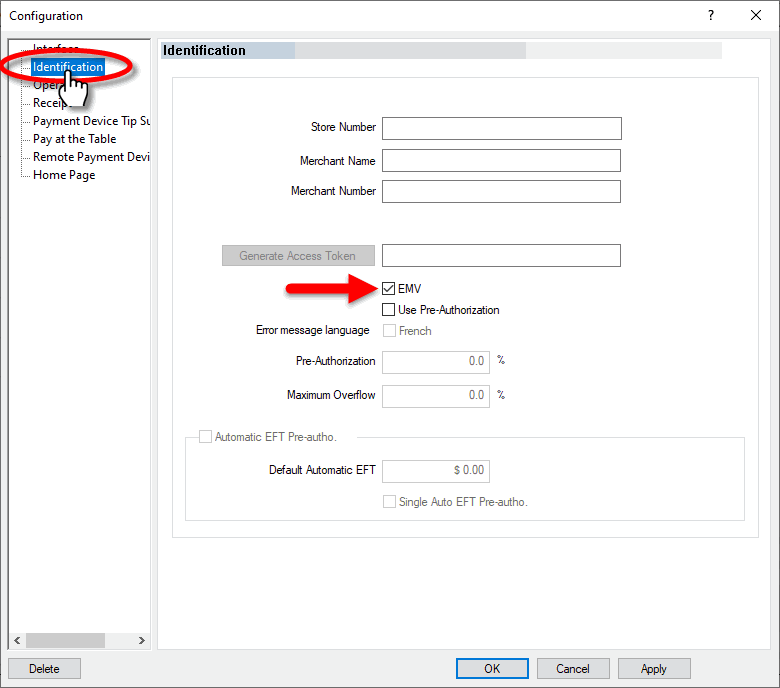
5. Click on the Identification branch.
* **Store Number**
Leave this field blank.
**Merchant Name**
Leave this field blank.
**Merchant Number**
Leave this field blank.
**Generate Access Token**
Ignore this option.
**EMV**
Enable this option.
**Use Pre-Authorization**
Enable this option to enable pre-authorization options for bar tabs. This feature only works with select payment processors in the United States.
**Error Message Language**
This field is grayed out and cannot be used with SecurePay.
**Pre-Authorization %**
This field is grayed out and cannot be used with SecurePay.
**Maximum Overflow**
This field is grayed out and cannot be used with SecurePay.
**Automatic EFT Pre-Autho.**
This option will become available once the Use Pre-Authorization option is enabled. Enable this option to use bar tabs. This feature only works with select payment processors in the United States.
**Default Automatic EFT**
Enter the default amount to be used for authorization when opening a bar tab with a credit card. This amount is also used as an increment value if the total of items already ordered is higher than the default amount. For example, if the default value is $25.00, Maitre'D will increment the suggested amount by $25.00 slices, going from $25.00 to $50.00 and then to $75.00 and so on, as needed to cover the current amount of the running tab.
**Single Auto EFT Pre-Autho.**
Enable this option to modify and re-use the existing pre-athorization when the authorized amount is exceeded. Disabling this option will cause a new pre-authorization to be processed every time the authorized amount is exceeded, which requires the card to be re-swiped. Some payment processors don't allow existing pre-authorizations to be modified while others may explicitly require it, so please check with your processor whether you should enable or disable this option.
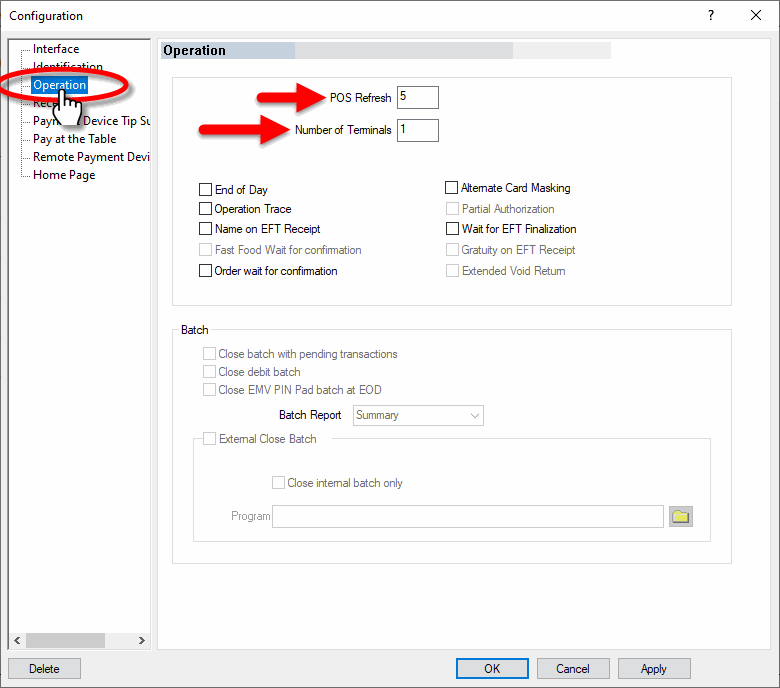
6. Click on the Operation branch.
* **POS Refresh**
Set this value to 5.
**Number of terminals**
Set this value to the number of SecurePay terminals that will be in use.
**End of Day**
Disable this option.
**Operation Trace**
Disable this option.
**Name on EFT Receipt**
Disable this option.
**Order Wait for Confirmation**
Disable this option.
**Alternate Card Masking**
Disable this option.
**Wait for EFT Finalization**
Disable this option.
**Other options**
All the remaining options are grayed-out and cannot be changed. Ignore them.
7. The settings from the Receipt, Payment Device Tip Suggestion, Pay at the Table, Remote Payment Device and Home Page branches don't have any effect on the operation of SecurePay. Please make sure not to change or remove any settings found in these pages, as these could affect the operation of other payment terminals operating with SecureTable.
8. Click OK to save changes and close the options window.
---
# Agent Instructions
This documentation is published with GitBook. GitBook is the documentation platform designed so that both humans and AI agents can read, navigate, and reason over technical content effectively. Learn more at gitbook.com.
## Querying This Documentation
If you need additional information that is not directly available in this page, you can query the documentation dynamically by asking a question.
Perform an HTTP GET request on the current page URL with the `ask` query parameter, and the optional `goal` query parameter:
```
GET https://docs.payfacto.com/payfacto-knowledge/uk-and-intl/applications/securepay/maitred-configuration/electronic-funds-transfer-module-setup.md?ask=&goal=
```
`ask` is the immediate question: it should be specific, self-contained, and written in natural language.
`goal` is optional and describes the broader end goal you are ultimately trying to accomplish on behalf of the user. GitBook uses it to tailor the answer towards what is most useful for that goal.
The response will contain a direct answer to the question and relevant excerpts and sources from the documentation.
Use this mechanism when the answer is not explicitly present in the current page, you need clarification or additional context, or you want to retrieve related documentation sections.