> For the complete documentation index, see [llms.txt](https://docs.payfacto.com/payfacto-knowledge/llms.txt). Markdown versions of documentation pages are available by appending `.md` to page URLs; this page is available as [Markdown](https://docs.payfacto.com/payfacto-knowledge/uk-and-intl/applications/securepay/maitred-configuration/media-type-mappings-for-securepay.md).
# Media Type Mappings for SecurePay
## Media Type Mappings for SecurePay
### Before you begin
In order to get accurate reporting data with SecureTable or SecurePay, media types known as mappings need to be created for each card brand that will be accepted by the merchant. Before beginning, gather information on all the card brands and payment types that are accepted at the restaurant. Obtain this information from the restaurant owner and managers, and from the restaurant’s credit card processor.
{% hint style="info" %}
NOTE: SecureTable and SecurePay can be used at the same time on the same POS system. Therefore, the merchant can have any combination of stationary terminals using SecurePay and mobile terminals using SecureTable. Both types of terminals will share the same media type mappings.
{% endhint %}
***
### Creating mappings for each card brand
1. Logon to the Maitre’D Back-Office with appropriate credentials. (Distributor or System Owner)
 
2. Start the Point of Sale Control Module.
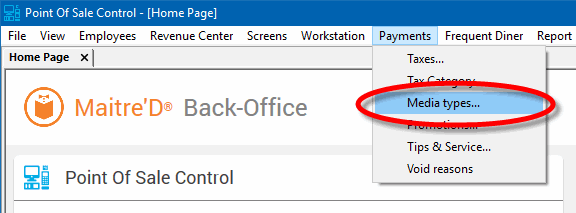
3. Click the Payments menu, and select the Media Types… option.
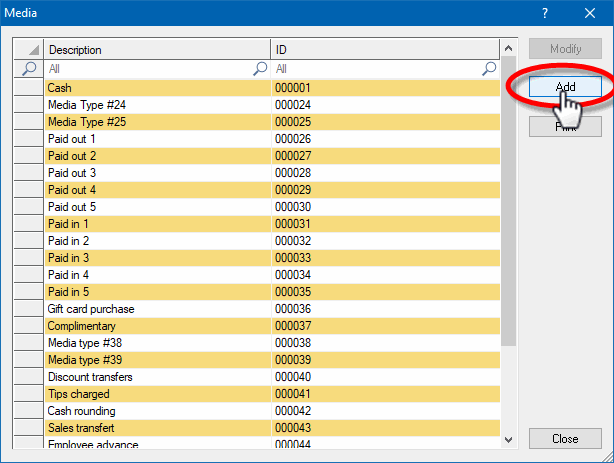
4. The list of all current media types will be displayed. Click the Add button.
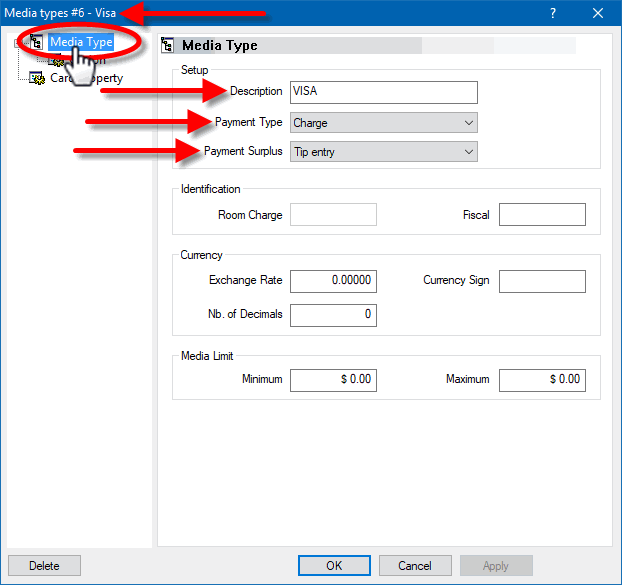
5. A blank Media Type window will open directly on the Media Type branch. Configure according to the information below:
**Media Type ID #**
The Media Type ID number is automatically determined by Maitre’D when the Media Type is created. Maitre’D will always use the lowest available number between #2 and #23 inclusively.
**Description**
Enter a meaningful description for this media type. This should generally be a card brand name such as Visa, MasterCard, AMEX, etc. This description will be shown on customer receipts and media reports.
**Payment Type**
Select the Charge option from the drop-down list.
**Payment Surplus**
* Select Tip Entry if the merchant accepts tips for servers.
* Select NULL if the merchant does not accept tips.
Configure remaining options per the merchant’s needs and preferences.
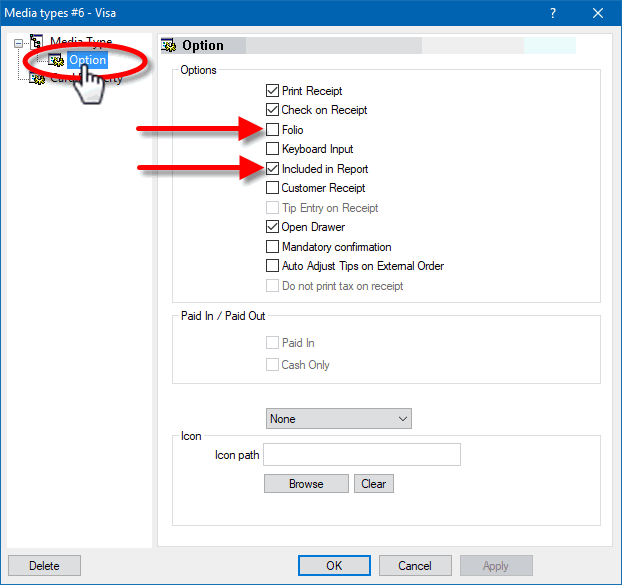
6. Click on the Option branch.
**Print Receipt (Optional)**
Enable this option to allow for a receipt to be printed after the transaction has been processed.
**Check on Receipt (Optional)**
Enable this option to have the detailed check print on the receipt.
**Folio**
Disabled. This option needs to be disabled for cards to be read properly.
**Keyboard Input**
Disabled. This option cannot be used since the Folio option above also needs to be disabled.
**Included in Report**
Enable this option so that this media type is shown in Back-Office reports (Recommended). Disabling this option will cause this media type to be hidden in the reports (NOT recommended).
**Open Drawer (Optional)**
Enable this option to make the cash drawer open when this media type is used.
{% hint style="info" %}
NOTE: Print Receipt, Check on Receipt and Open Drawer options have no effect on wireless payment terminals using SecureTable. However, payment terminals with SecurePay will be affected.
{% endhint %}
Configure remaining options per the merchant’s needs and preferences.
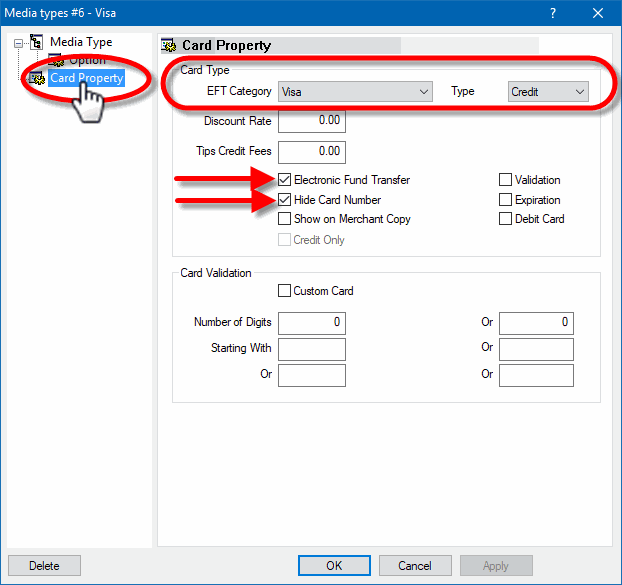
7. Click on the Card Property branch.
**EFT Category**
Set this drop-down list to whichever card brand that needs to be mapped to this media type.
**Type**
This drop-down list is used to determine the type of payment for the purpose of Sales Recording Modules and fiscal printers. The available settings are described below.
**Cash**
Select the Cash option for the default cash payment and any other payment involving cash, such as foreign currencies.
**Credit**
Select this option for all credit card payments.
**Debit**
Select this option for U.S. Debit and Canadian debit (Interac) payments.
**Other**
Select this option for all payments which do not fall in any of the above categories. Gift card purchases and Gift Card redeem are common examples of media types where Other needs to be selected.
**Discount Rate**
This option is not supported with EMV protocols and semi-integrated protocols like SecureTable or SecurePay. Leave this value at 0.00.
**Tips Credit Fees**
Enter the percentage of tips paid to the waiters that will be withheld to cover for fees charged by payment processors. If you do not wish to use this feature, leave it at 0.00.
{% hint style="info" %}
NOTE: Some jurisdictions don't allow transaction or credit card processing fees to be passed down to employees. Please verify your local regulations before using this feature.
{% endhint %}
**Electronic Funds Transfer**
Enable this option. This option needs to be enabled to block operations that are not compatible with EMV payments, such as Cancel/Reopen Check.
**Hide Card Number**
This option automatically becomes enabled when Electronic Funds Transfer is enabled. Leave it enabled.
**Show on Merchant Copy**
Disable this option. This option was used by older, non-integrated protocols and caused the credit card number to be printed on the merchant copy of EFT transaction records. This option has no effect with any Electronic Funds Transfer protocol, semi-integrated protocols, SecureTable or SecurePay.
**Credit Only**
This option is not usable (grayed-out) with most EFT protocols. It is only used with the Datacap - DSIEMVUS semi-integrated protocols to allow Pre-Authorization and PreAuth Capture with select processors that support this feature.
**Validation**
Disable this option. Validation is only used with fully integrated EFT protocols and has no effect with semi-integrated protocols such as SecureTable or SecurePay.
**Expiration**
Disable this option. This option automatically becomes enabled when Electronic Funds Transfer is enabled. Make sure to DISABLE it. Otherwise, the POS will request the credit card’s expiration date, which will slow down your operations. This information is already checked by the payment terminal and does not need to be re-validated by the POS.
**Debit Card**
* Enable this option if you are creating a mapping for U.S. Debit or Canadian Debit (Interac).
* Disable this option for credit card brand mappings (Visa, Mastercard, American Express, Discover, etc.).
**Card Validation**
All the options in this section must be cleared. Make sure to clear the Custom Card checkbox as well as all the fields in the Card Validation section.
8. Click OK to save changes. The new media type will appear in the list.

8. Repeat the previous steps until all required mappings are created. At the end of the process, you should have one mapping for each card brand that is accepted by the merchant.
---
# Agent Instructions
This documentation is published with GitBook. GitBook is the documentation platform designed so that both humans and AI agents can read, navigate, and reason over technical content effectively. Learn more at gitbook.com.
## Querying This Documentation
If you need additional information that is not directly available in this page, you can query the documentation by asking a question.
Perform an HTTP GET request on the following URL with the `ask` and `goal` query parameters:
```
GET https://docs.payfacto.com/payfacto-knowledge/uk-and-intl/applications/securepay/maitred-configuration/media-type-mappings-for-securepay.md?ask=&goal=
```
`ask` is the immediate question: it should be specific, self-contained, and written in natural language.
`goal` is what the user is ultimately trying to achieve, the reason they need the answer. Sharing it helps GitBook give you a better, more relevant answer. A goal is most helpful when it describes the outcome the user wants rather than restating the question. For example, with `ask=how do I create an API token`, a goal like `automate deployments from our CI pipeline` lets GitBook tailor the answer to that use case.
The response will contain a direct answer to the question and relevant excerpts and sources from the documentation.
Use this mechanism when the answer is not explicitly present in the current page, you need clarification or additional context, or you want to retrieve related documentation sections.