> For the complete documentation index, see [llms.txt](https://docs.payfacto.com/payfacto-knowledge/llms.txt). Markdown versions of documentation pages are available by appending `.md` to page URLs; this page is available as [Markdown](https://docs.payfacto.com/payfacto-knowledge/maitred-pos/maitred/maitred-pa-dss-implementation-guide/pa-dss-requirement-2.3/electronic-funds-transfer-eft-interface.md).
# Electronic Funds Transfer (EFT) Interface
### Electronic Funds Transfer (EFT) Interface
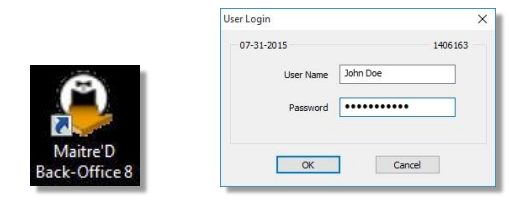
1. Logon to the Maitre’D Back-Office with appropriate credentials. (Distributor or System Owner)

2. Start the Electronic Funds Transfer Module.
\

3. Click the View menu, and select Options…
\

4. Click on the Interface branch.
\

**Interface**
Set the Interface drop-down list to DATACAP - DSICLIENTX.
**Protocol**
Set the Protocol drop-down list to Generic (USA and Canada).
**Lane Identification**
This is required by some payment processors. There is usually a unique identifier for each POS workstation accepting card payments and another one for the Maitre’D Back- Office. This information is provided by the card payment processor.
\
**Moneris**
Enable this option if your processor is Moneris Payment Solutions.
**Password**
This is required by some payment processors. Enter the password provided by the card payment processor, if any.
**IP Address**
If using NETePay or any other application provided by Datacap, type in the IP Address or URL where the application is residing. If the application resides locally, use the LocalHost address of 127.0.0.1.
**Process Control**
Enable this option to show a progress bar whenever the EFT interface is processing an operation such as transactions, batch closing, restarting, etc. Note that on fast computers and high-speed internet, the progress bar may not appear long enough to even be visible.
**Shared Folder**
This option cannot be used with the DATACAP – DSICLIENTX protocol. Instead, it displays the current shared folder used by the Maitre’D Suite.
5. Click on the Identification branch.
**Store Number**
Enter the store number provided by the card payment processor.
{% hint style="info" %}
NOTE: This field is seldom used by card payment processors. Most will only provide a merchant number. If no store number is provided by the processor, leave this field blank.
{% endhint %}
**Merchant Number**
Type in the Merchant Number provided by the card payment processor or by Datacap.
**EMV**
This option is not available with the DATACAP – DSICLIENTX interface.

**Use Pre-Authorization**
Enable this option to use the Pre-Authorization functionality. With Pre-Authorization, employees are able to authorize a payment for the total amount of the guest check and later add any tip amount decided by the customer.
**Automatic EFT Pre-autho.**
Enable this option to be able to use incremental pre-authorizations in order to run a bar tab on a credit card.
**Pre-Authorization %**
This field can be used to pre-authorize an amount greater than the check total. This is useful to make sure that a credit card has enough credit to cover for the value of a check + tips. For example, if the percentage is set to 15% and the check total is $100.00, Maitre’D would request a pre-authorization for $115.00.
{% hint style="info" %}
NOTE: This can cause gift cards issued by credit card companies (Visa, MasterCard, AMEX, etc.) to be declined. Keeping with the example above, if the value of the gift card is $100.00, the transaction would be declined because Maitre’D tried to pre-authorize it for $115.00.
{% endhint %}
**Maximum overflow**
Use the Maximum Overflow percentage to verify that the finalization amount entered by employees cannot surpass a certain percentage of the total check value. For example, if this percentage is set to 20% and the check total is $100.00, Maitre’D will not let the employees finalize this transaction with an amount greater than $120.00.
{% hint style="info" %}
NOTE: Setting this percentage to 0.00% disables the verification and any amount will be accepted by Maitre’D.
{% endhint %}
**Default Automatic EFT**
Enter the default amount to be used for authorization when opening a bar tab with a credit card.
**Error Message Language: French**
Enable this option for French-speaking markets.
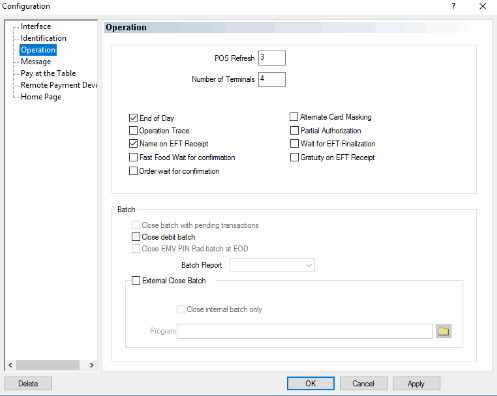
6. Click on the Operation branch.
**POS Refresh**
This is the delay, in seconds, after which the POS will check the Back-Office server for an answer to the transaction request. The default value is 3 for processors operating on high-speed internet.
**Number of Terminals**
This is the number of simultaneous transactions that can be handled by the Maitre’D Back-Office server.
{% hint style="info" %}
NOTE: This value is not related to the actual number of POS workstations in the restaurant.
{% endhint %}
**End of Day**
Enable this option to allow for the End-of-Day to be done even if there are transactions in the current batch. If this option is disabled, the batch will need to be closed before the End-of-Day can be done.
**Operation Trace**
Disable this option. This option is no longer used and currently has no effect with the Datacap – DSIClientX protocol.
**Name on EFT Receipt**
Enable this option to print the cardholder name on the EFT transaction records.
**Fast Food wait for confirmation**
Enable this option to have employees with the Fast-Food function wait on the media type screen for the EFT response using the Datacap – DSIClientX protocol. If the transaction is declined, they can choose another form of payment without having to recall the transaction.
**Order Wait for Confirmation**
Enable this option to have employees with the Order function wait on the media type screen for the EFT response using Datacap – DSIClientX protocol. If the transaction is declined, they can choose another form of payment without having to recall the transaction.
**Alternate Card Masking**
Enable this option to partially hide the debit card number to show only the first 10 digits and mask the last 4 digits on the EFT voucher in Canada. The rest of the card account number will be replaced by 'xxxx'. This option does not affect credit cards and has no effect with the Datacap – DSIClientX protocol.
{% hint style="info" %}
NOTE: The Hide Card Number option also needs to be enabled, in POS Control / Payment / Media Type / Card Property, which also hides the first digits of credit card numbers and shows only the last 4 digits.
{% endhint %}
**Partial Authorization**
Enable this option to facilitate the acceptance of gift cards sold by credit card issuers like Visa and MasterCard. With this option enabled, Maitre’D will first query the processor/acquirer with the card number. If the card is found to be a Visa or MasterCard gift card, the processor will return the balance left on the card. If the balance amount can’t cover the full value of the check, Maitre’D will apply that amount towards the check and request another form of payment to cover the remaining amount.
**Wait for EFT Finalization**
Enable this option to force workstations to wait until the response from the processor is received before processing another card on the same check.
**Gratuity on EFT Receipt**
Enable this option to print the total gratuity amount that was added to the check through over-tendering or gratuity options on the EFT transaction records.
{% hint style="info" %}
NOTE: This option does not prevent the customers from leaving additional tips should they wish.
{% endhint %}
**Close batch with pending transactions**
This option is not available with the DATACAP – DSICLIENTX protocol.
**Close debit batch**
Enable this option to close the debit card batch as part of the End of D ay process.
**Close EMV PIN Pad batch at EOD**
This option is not available with the DATACAP – DSICLIENTX protocol.
**External Close Batch**
Enable this option if an external application is used to close the credit card batch.
**Close internal batch only**
Enable this option to force Maitre’D to reset its internal batch count during the End-of- Day process. This is required if a third-party application is used to close the credit card batch and that Maitre’D is not used at all for that task.
**Program**
This is optional. Select the executable that will launch the third-party application used to close the credit card batch. Maitre’D will launch that executable for you when you close the batch through the Maitre’D EFT module, under File / Close Batch…
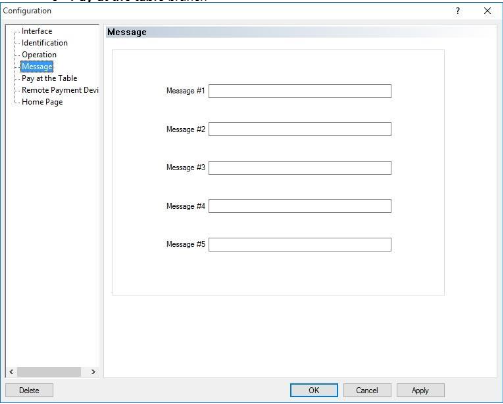
7. Messages branch.
Use the 5 lines provided to print custom messages on EFT transaction records. This is optional and can be left blank if not used.
8. Pay at the table branch
All the settings on this page are not supported by the DATACAP - DSIClientX protocol, so leave everything blank/unchecked.
9. Remote Payment Device branch
All the settings on this page are not supported by the DATACAP - DSIClientX protocol, so leave everything blank/unchecked
10. Home Page branch.
**Use Default**
Enable this option to use the default home page when accessing the Electronic Funds Transfer module. Disable this option to use a customized home page.

#### Media Types
Once the EFT interface is properly setup, media types needs to be created for each credit card brand that will be accepted in the establishment.
1- Logon to the Maitre’D Back-Office with appropriate credentials. (Distributor or System Owner)