If your terminal supports contactless payment technology, you can configure the feature with the following topics:
Most modern payment terminals support and accept payment cards that use contactless technology, where you present or "tap" the card on the reader to transmit the card information. By default, contactless transactions (sales and refunds) are enabled on the terminal.
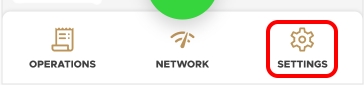
From the main screen, touch Settings.
Enter the merchant password and touch Confirm.
Scroll to the Configure application section.
Touch Application options.
In the Contactless
Each payment processor/card brand has their own touch/tap payment technology. The terminal supports all major technologies. When you enable contactless transactions, you can select which technologies you will accept. The available technologies include:
Visa PayWave
MMCL / PayPass
Interac Flash
AMEX ExpressPay
TIP: As a security measure, we recommend that you disable any contactless technology you do not accept; this will prevent a client from attempting to use a card from a payment processor or brand you do not have an agreement with.
From the main screen, touch Settings.
Enter the merchant password and touch Confirm.
Scroll to the Configure application section.
Touch Application options.
In the Contactless
If you have more than one terminal, repeat steps 1 to 5 for each additional terminal to configure its supported contactless technologies.
If desired, you can disable contactless transactions if you do not want to offer this option to your customers.
From the main screen, touch Settings.
Enter the merchant password and touch Confirm.
Scroll to the Configure application section.
Touch Application options.
In the Contactless
If you have more than one terminal, repeat steps 1 to 5 for each additional terminal where you want to offer contactless transactions.
JCB JSpeedy
Discover DPAS
If you have more than one terminal, repeat steps 1 to 5 for each additional terminal where you to disable contactless transactions.
Enabled
Disabled

