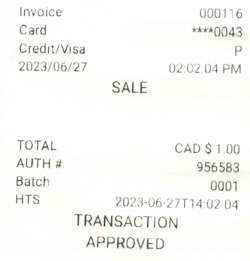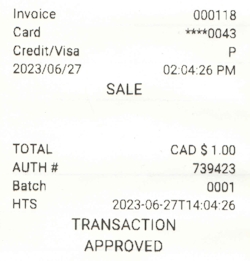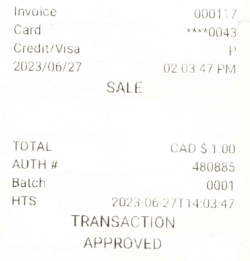
If your terminal has a built-in printer, or connects to an external printer, there are several printing options you can configure that determine when a transaction receipt gets printed, as well as the receipt's appearance.
If your terminal is equipped with a printer, you can adjust the printer settings to suit your business needs. The available printing options are:
If your terminal is equipped with (or connects to) a printer, you can print transaction receipts after the transaction is confirmed. By default, the Secure Payment application's payment module enables the printing on transaction receipts, but you can adjust the setting if needed.
From the main screen, touch Settings.
Enter the merchant password and touch Confirm.
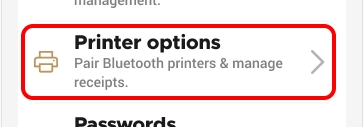
In the Configure application section, touch Printer options.
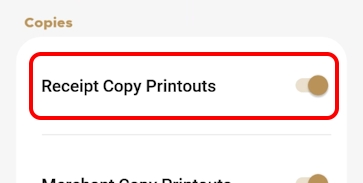
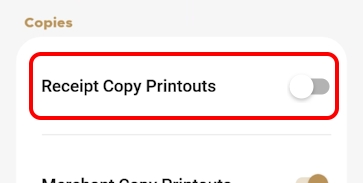
In the Copies section, slide the Receipt Copy Printouts toggle switch to the right if it isn't already enabled.
If you have more than one terminal, repeat steps 1 to 4 for each additional terminal where you want to enable transaction receipt printing.
When you enable the printing of transaction receipts, the customer receipt is always available to print, but you can choose whether to print the merchant copy or not. Printing the merchant copy for each transaction allows you to reconcile your individual transactions with the batch processing and the transaction reports.
From the main screen, touch Settings.
Enter the merchant password and touch Confirm.
In the Configure application section, touch Printer options.
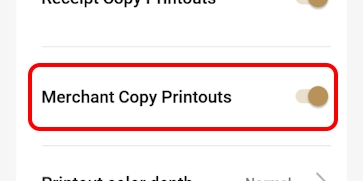
In the Copies section, slide the Merchant Copy Printouts toggle switch to the right if it isn't already enabled.
If you have more than one terminal, repeat steps 1 to 4 for each additional terminal where you want to enable the printing of the merchant copy of the transaction receipt.
The payment terminals use thermal paper to print the transaction receipts. You can adjust the level of contrast for the transaction receipts if they are difficult to read. If you have a mobile or portable payment terminal, the contrast level can affect battery usage.
The following table shows examples of each printout contrast level:
From the main screen, touch Settings.
Enter the merchant password and touch Confirm.
In the Configure application section, touch Printer options.
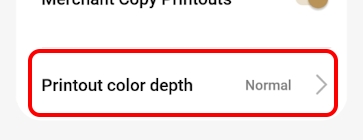
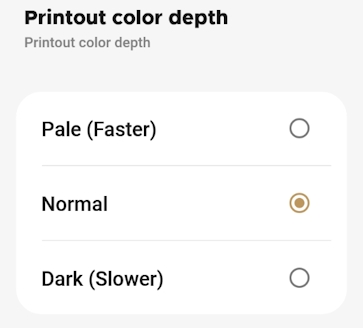
In the Copies section, touch Printout color depth.
On the Printout color depth screen, touch the desired contrast level: Pale, Normal, or Dark.
If you have more than one terminal, repeat steps 1 to 5 for each additional terminal where you want to set the printout contrast level.
In addition to printing receipts for sales transactions, you can print receipts for some non-sales transactions, including:
Declined credit transactions
Void transactions
Completed transactions
Force post transactions
IMPORTANT! If you disable printing for any of these operations, the customer will have no physical evidence of these transactions.
In addition to the transactions listed above, you can enable or disable the following printer settings:
Bar code: Prints a barcode on the transaction receipt that identifies the individual transaction; helpful when using a terminal equipped with a scanner when performing refund or void transactions
Total line on pre-authorization receipts: Adds a total line to the transaction receipt that prints when a pre-authorization is confirmed (usually paired with the tip line)
Tip line on pre-authorization receipts: Adds a tip line to the transaction receipt that prints when a pre-authorization is confirmed
From the main screen, touch Settings.
Enter the merchant password and touch Confirm.
In the Configure application section, touch Printer options.
In the Printing receipts section, enable each desired function by sliding the toggle switch to the right or disable functions by sliding the toggle switch to the left.
If you have more than one terminal, repeat steps 1 to 4 for each additional terminal where you want to set which transactions will print a transaction receipt.
If a transaction receipt is lost or damaged, you can print a duplicate copy of the receipt.
From the main screen, touch Settings.
Enter the merchant password and touch Confirm.
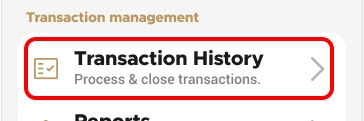
In the Transaction management section, touch Transaction History.
Scroll to or search for the desired transaction to reprint.
Touch the desired transaction to display the details.
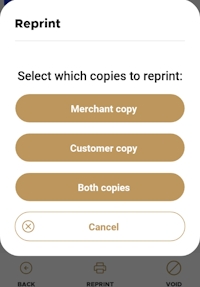
Touch Reprint.
In the Reprint screen, touch the button for the transaction receipt you want to reprint:
The terminal prints the selected duplicate copy(ies) of the transaction receipt.
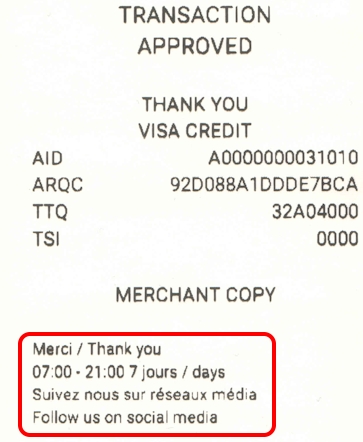
You can add a personalized message at the bottom of every printed transaction receipt. Your message can include business hours, social media coordinates, and more. Your message can contain up to 4 lines with 48 characters (including spaces) per line.
TIP: You should prepare your message on a piece of paper in advance, to ensure that you have the correct number of characters per line.
From the main screen, touch Settings.
Enter the merchant password and touch Confirm.
In the Configure application section, touch Printer options.
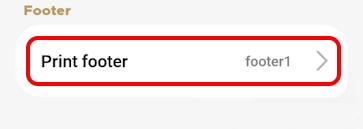
Scroll to the bottom of the screen to find the Footer section and touch Print footer.
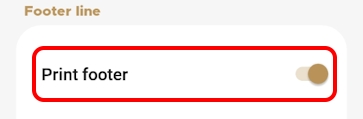
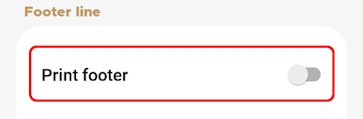
On the Footer option screen, slide the Print footer toggle switch to the right.
If you have more than one terminal, repeat steps 1 to 5 for each additional terminal where you want to enable a personalized message on the bottom of the transaction receipts.
When you enable printing a personalized message on your transaction receipt footers, you need to configure the message by entering it on one of the four (4) available lines on the receipt footer.
TIP: When preparing your message, consider any languages your customers might speak and configure your personalized message to meet all possible languages. Don't forget to check your message for spelling mistakes!
From the main screen, touch Settings.
Enter the merchant password and touch Confirm.
In the Configure application section, touch Printer options.
Scroll to the bottom of the screen to find the Footer section and touch Print footer.
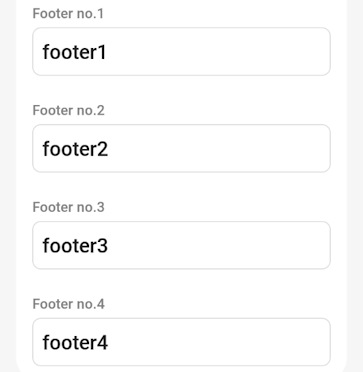
On the Footer option screen, delete the text in the Footer no. 1 field and enter the first line of your custom message.
Repeat step 5 for each additional line you want to use for your personalized message, using the Footer no. 2, Footer no. 3, and Footer no. 4 fields.
If you have more than one terminal, repeat steps 1 to 6 for each additional terminal where you want to configure the personalized message at the bottom of the transaction receipts.
When using a personalized message on your transaction receipt footers, you may want to change or delete some of the message. You can easily adjust the footer text whenever you need.
From the main screen, touch Settings.
Enter the merchant password and touch Confirm.
In the Configure application section, touch Printer options.
Scroll to the bottom of the screen to find the Footer section and touch Print footer. The Footer option screen appears.
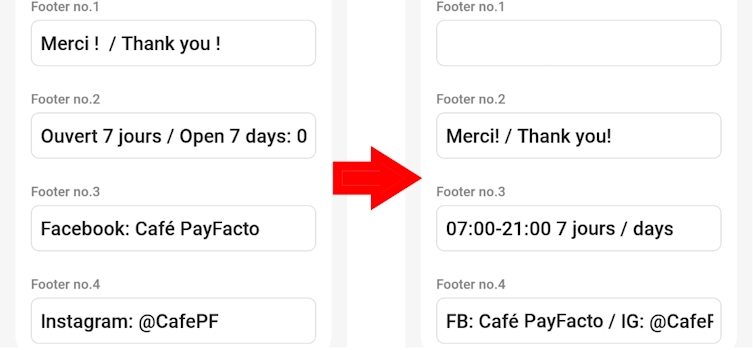
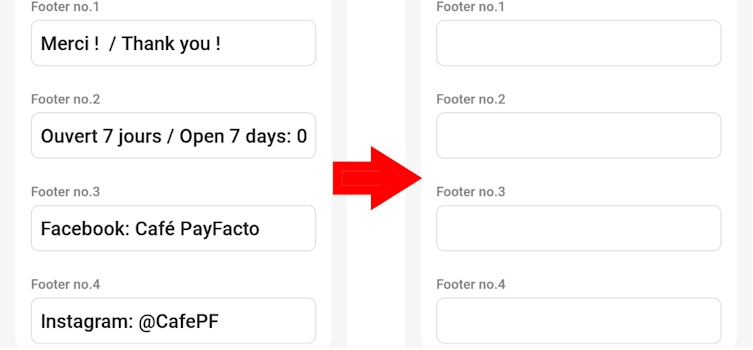
To edit your message, adjust the text in the Footer no. 1, Footer no. 2, Footer no. 3, and/or Footer no. 4 fields as required, as shown in the following example:
If you want to delete your personalized message, delete the text in the Footer no. 1, Footer no. 2, Footer no. 3, and Footer no. 4 fields, as shown in the following example:
TIP: You can also remove the message from the receipt footers using the procedure; it prevents the message from printing on the receipt, but remains available for later use if desired.
If you have more than one terminal, repeat steps 1 to 6 for each additional terminal where you want to change the personalized message at the bottom of the transaction receipts.
If you enabled a personalized message at the bottom of every printed transaction receipt, but you no longer want to use any message on the footer, you can easily disable footer message printing.
From the main screen, touch Settings.
Enter the merchant password and touch Confirm.
In the Configure application section, touch Printer options.
Scroll to the bottom of the screen to find the Footer section and touch Print footer.
On the Footer option screen, slide the Print footer toggle switch to the left.
If you have more than one terminal, repeat steps 1 to 5 for each additional terminal where you want to disaable personalized messages at the bottom of the transaction receipts.
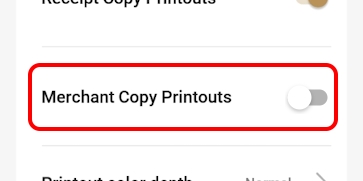
If you previously enabled the printing of merchant transaction receipts and you no longer want or need them, you can quickly disable the function.
From the main screen, touch Settings.
Enter the merchant password and touch Confirm.
In the Configure application section, touch Printer options.
In the Copies section, slide the Merchant Copy Printouts toggle switch to the left.
If you have more than one terminal, repeat steps 1 to 4 for each additional terminal where you want to disable the printing of the merchant copy of the transaction receipts.
By default, the Secure Payment application's payment module enables the printing on transaction receipts, but you can disable the function if needed.
From the main screen, touch Settings.
Enter the merchant password and touch Confirm.
In the Configure application section, touch Printer options.
In the Copies section, slide the Receipt Copy Printouts toggle switch to the left.
If you have more than one terminal, repeat steps 1 to 5 for each additional terminal where you want to disable the printing of transaction receipts.
Cashback print Signature line: Adds a signature line for cashback transactions for customers to sign as proof that they received the requested cashback amount
Reverse on declined: Prints the transaction result in white on a dark background for declined transactions
Customer copy
Both copies
Pale
Normal
Dark
Lightest printout (lowest contrast), prints faster and uses less battery
Default printout setting, average printing speed and battery use
Darkest printing (highest contrast), prints slower and uses more battery
Enabled
Disabled