> For the complete documentation index, see [llms.txt](https://docs.payfacto.com/payfacto-knowledge/llms.txt). Markdown versions of documentation pages are available by appending `.md` to page URLs; this page is available as [Markdown](https://docs.payfacto.com/payfacto-knowledge/canada-doc-center/terminals/countertop/pax-a80/a80-setup-guide/terminal-activation/activate-terminal.md).
# Activate Terminal
### Activate Terminal
After configuring the terminal’s network connection, you need to start the PayFacto payment application to complete the remaining steps. Terminal activation requires you to input a One Time Passcode (OTP) that PayFacto sends to the email address or telephone number registered to your account.
{% hint style="warning" %}
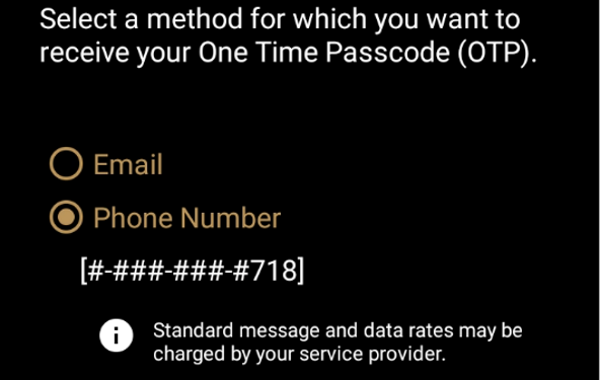
IMPORTANT! To receive the OTP on your phone, your registered phone number must be able to receive text messages (SMS). If you cannot receive text messages, select the email option to get the OTP.
{% endhint %}
#### **To activate the payment terminal:**
1. Touch the **PAYMENT** icon on the main screen. The *Welcome To Your Payment Terminal* screen appears.  {% hint style="info" %}
NOTE: The terminal may need to download host and security parameters; this can take a few moments.
{% endhint %}
2. In the top right corner of the screen, your terminal ID (TID) appears; confirm that the number on the screen matches the TID on the label on the back of your terminal. The TID will not appear on your terminal screen after you complete the activation process.

{% hint style="warning" %}
IMPORTANT! If the TID does not match, call PayFacto immediately.
{% endhint %}
3. Touch anywhere on the screen to begin the activation process.
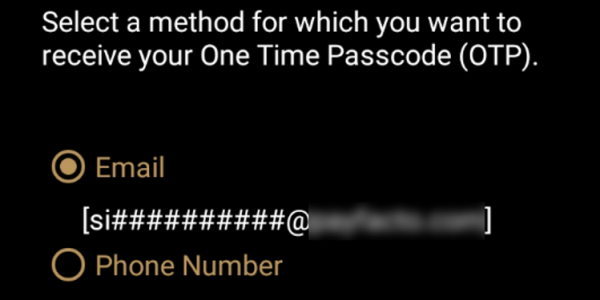
4. Touch the desired option to receive the OTP.
**Email**
**Phone Number**
5. Touch the **Send Code** button.
{% hint style="warning" %}
IMPORTANT! The OTP code is valid for **15 minutes** after you receive it. If you wait more than 15 minutes to enter the OTP, the terminal will display an error and you will have to request a new OTP.
{% endhint %}
6. If you select **Email**, look for a message from ****.
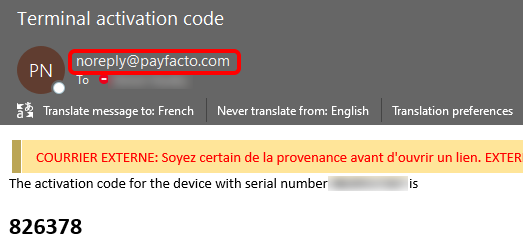
7. After you receive the 6-digit activation code, use the on-screen keypad to enter the code on the terminal screen.
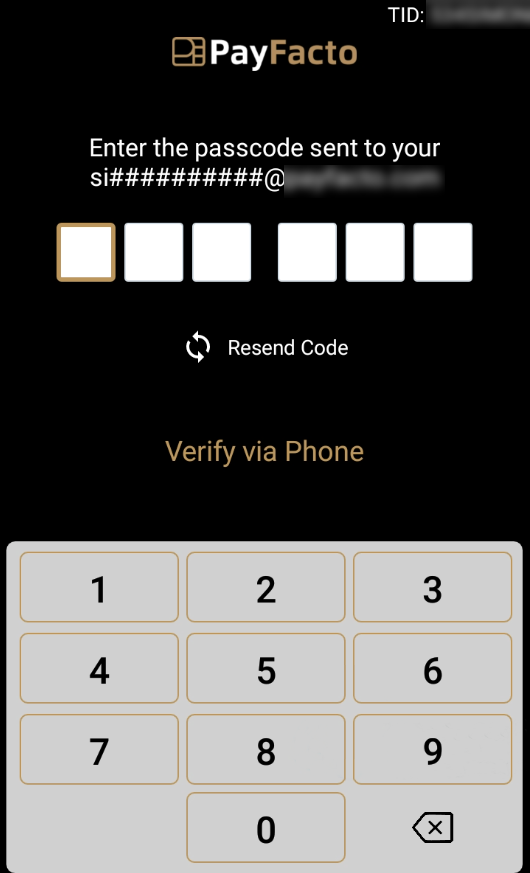
8. If you enter the code incorrectly, a red exclamation appears to indicate that the code is incorrect.
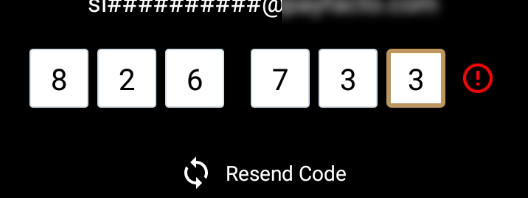
9. Re-enter the code, or touch **Resend Code** to obtain a new OTP.
10. After you enter the OTP correctly, the payment application displays the *Set Administrative Password* screen to [configure your terminal passwords.](broken://pages/RvngxYiQxxyYL9gYOEeR#set-passwords)
{% hint style="info" %}
NOTE: The terminal may need to download host and security parameters; this can take a few moments.
{% endhint %}
2. In the top right corner of the screen, your terminal ID (TID) appears; confirm that the number on the screen matches the TID on the label on the back of your terminal. The TID will not appear on your terminal screen after you complete the activation process.

{% hint style="warning" %}
IMPORTANT! If the TID does not match, call PayFacto immediately.
{% endhint %}
3. Touch anywhere on the screen to begin the activation process.
4. Touch the desired option to receive the OTP.
**Email**

**Phone Number**

5. Touch the **Send Code** button.
{% hint style="warning" %}
IMPORTANT! The OTP code is valid for **15 minutes** after you receive it. If you wait more than 15 minutes to enter the OTP, the terminal will display an error and you will have to request a new OTP.
{% endhint %}
6. If you select **Email**, look for a message from ****.

7. After you receive the 6-digit activation code, use the on-screen keypad to enter the code on the terminal screen.

8. If you enter the code incorrectly, a red exclamation appears to indicate that the code is incorrect.

9. Re-enter the code, or touch **Resend Code** to obtain a new OTP.
10. After you enter the OTP correctly, the payment application displays the *Set Administrative Password* screen to [configure your terminal passwords.](broken://pages/RvngxYiQxxyYL9gYOEeR#set-passwords)