> For the complete documentation index, see [llms.txt](https://docs.payfacto.com/payfacto-knowledge/llms.txt). Markdown versions of documentation pages are available by appending `.md` to page URLs; this page is available as [Markdown](https://docs.payfacto.com/payfacto-knowledge/canada-doc-center/applications/secure-payment/gateway-module-user-guide/gateway-application/transaction-management.md).
# Transaction Management
When using the Secure Payment application, it is helpful to have a list of processed transactions to ensure your bookkeeping is aligned with your business' sales. The terminal can print transaction reports, allowing you to view either detailed or summary information on the transactions and transaction types for the terminal's current batch; if your business uses multiple terminals, you need to print reports on those terminals to view their reports.
Detailed reports display a list of every transaction in the current batch, including date, time, transaction type, payment method, invoice number, and amount. Summary reports group the transactions by card type, displaying the total sales, and the number of transactions.
The terminal’s printer (built-in or external) can print transaction reports for the current batch. For reconciliation purposes, you may want to print a report prior to the automated settlement, but it is not a requirement. Printing reports is meant to assist with your bookkeeping.
The available transaction reports are:
* [Batch details](#print-detailed-transaction-report)
* [Batch summary](#print-batch-summary-report)
***
### Search for a Transaction
You can search for transactions on the terminal to view the details about one or more transactions. If you have multiple terminals operating under the same merchant ID (MID), all transactions from all terminals appear in the list with the most recent transaction at the top of the list. You can search for transactions in the current (open) batch as well as from previous batches.
{% hint style="info" %}
NOTE: Because all of a merchant's transactions processed on all terminals are saved immediately to the server, the list of transactions may be quite long.
{% endhint %}
{% hint style="success" %}
TIP: If you find it difficult to locate a specific transaction from an individual terminal, you may choose to restrict the search function to only display transactions performed on each individual terminal.
To restrict the transaction display to only those processed by the terminal, you must contact PayFacto support to request that your merchant profile displays only transactions processed on individual terminals by activating the **Terminal Only Reports** function. This will restrict transaction searching to individual terminals.
{% endhint %}
#### **To search for a transaction:**
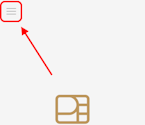
1. From the main screen, touch the **Menu** button.
2. Enter the merchant password and touch **Confirm**.
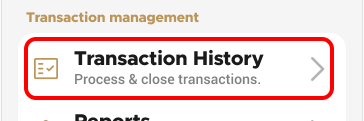
3. In the **Transaction management** section, touch **Transaction History**.
4. Touch the **Search** button.
5. Enter one or more of the following search criteria:
* An invoice number in the **Invoice number** field
* An authorization code in the **Authorization code** field
* Touch the **Time range** field to select a date range for the desired transaction; touch **Save** to search using the selected date range
6. Touch the **Search** button. The terminal returns any transaction that meets the selected search criteria.
7. Touch the desired transaction to display the details.
***
### Print Detailed Transaction Report
The detailed report for the current batch of transactions lists each individual transaction’s details. You may want to print the detailed transaction in order to have a printed copy of the transactions prior to processing the the current batch. Printing a detailed report allows you to reconcile each transaction as part of your bookkeeping.
{% hint style="info" %}
NOTE: Printing a detailed report can consume a large quantity of paper, depending on the number of transactions in the current batch.
{% endhint %}
#### **To print a detailed list of transactions for the current batch:**
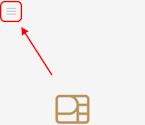
1. From the main screen, touch the **Menu** button.
2. Enter the merchant password and touch **Confirm**.
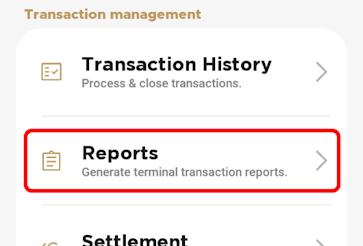
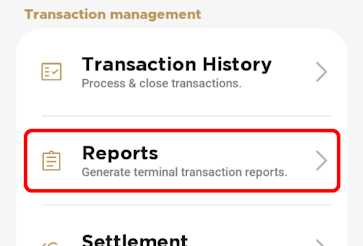
3. In the **Transaction management** section, touch **Reports**.
4. In the **Batch Details** section, touch **Print Batch Details**.\
The terminal prints the *Batch Details Report*, listing all transaction details in the current batch for all terminal operators.
5. If you have more than one terminal, repeat steps **1** to **4** for each additional terminal where you want to print the detailed transaction report.
***
### Print Batch Summary Report
The summary report for the current batch of transactions allows you to see the totals for each payment method used, including sales, refunds, tips, cashbacks, and fees. You may want to print the summary report to reconcile transactions by payment type as part of your bookkeeping prior to processing the current batch.
#### **To print a summary list of transactions for the current batch:**
1. From the main screen, touch the **Menu** button.
2. Enter the merchant password and touch **Confirm**.
3. In the **Transaction management** section, touch **Transaction History**.
4. In the **Batch Summary** section, touch **Print Batch Summary**.\
The terminal prints the *Summary Details Report*, listing all transactions in the current batch, grouped by card type for all terminal operators.
5. If you have more than one terminal, repeat steps **1** to **6** for each additional terminal where you want to print the summary transaction report.
---
# Agent Instructions
This documentation is published with GitBook. GitBook is the documentation platform designed so that both humans and AI agents can read, navigate, and reason over technical content effectively. Learn more at gitbook.com.
## Querying This Documentation
If you need additional information that is not directly available in this page, you can query the documentation by asking a question.
Perform an HTTP GET request on the following URL with the `ask` and `goal` query parameters:
```
GET https://docs.payfacto.com/payfacto-knowledge/canada-doc-center/applications/secure-payment/gateway-module-user-guide/gateway-application/transaction-management.md?ask=&goal=
```
`ask` is the immediate question: it should be specific, self-contained, and written in natural language.
`goal` is what the user is ultimately trying to achieve, the reason they need the answer. Sharing it helps GitBook give you a better, more relevant answer. A goal is most helpful when it describes the outcome the user wants rather than restating the question. For example, with `ask=how do I create an API token`, a goal like `automate deployments from our CI pipeline` lets GitBook tailor the answer to that use case.
The response will contain a direct answer to the question and relevant excerpts and sources from the documentation.
Use this mechanism when the answer is not explicitly present in the current page, you need clarification or additional context, or you want to retrieve related documentation sections.